

Did you know that over 30% of Apple Watch users experience data transfer problems at some point? When your workout information doesn’t appear where it should, it can feel like your efforts have vanished into thin air.
This frustrating situation prevents your valuable activity metrics from showing up on your iPhone. You put in the work, but the results don’t reflect your progress. The good news is that most connection problems have simple solutions.
Common causes include basic connectivity glitches, outdated software versions, or incorrect permission settings. These interruptions can stop your devices from communicating properly. Understanding how your wearable and phone work together is the first step toward resolution.
Our comprehensive guide walks you through multiple troubleshooting methods. We start with quick checks and move to more advanced techniques. Whether you use Apple’s native activity tracker or popular third-party options, these steps apply broadly.
You’ll learn how to verify settings, refresh connections, and restore proper data flow. Most importantly, you can typically resolve these issues without losing any of your hard-earned activity history. Let’s get your tracking system working smoothly again.
Key Takeaways
- Syncing problems affect a significant portion of wearable device users
- Most connection issues stem from simple, fixable causes
- Basic troubleshooting often resolves the problem quickly
- Both Apple and third-party activity trackers can experience these challenges
- Understanding device relationships helps diagnose where breakdowns occur
- Step-by-step solutions can restore data flow without loss of information
- Proper permission settings are crucial for seamless data transfer
Troubleshooting: fitness app not syncing with apple watch
Data transfer hiccups between complementary devices are more common than you might think. When your wearable and phone separate then reconnect, allow a few minutes for automatic synchronization to complete. This delay prevents premature assumptions about connection problems.
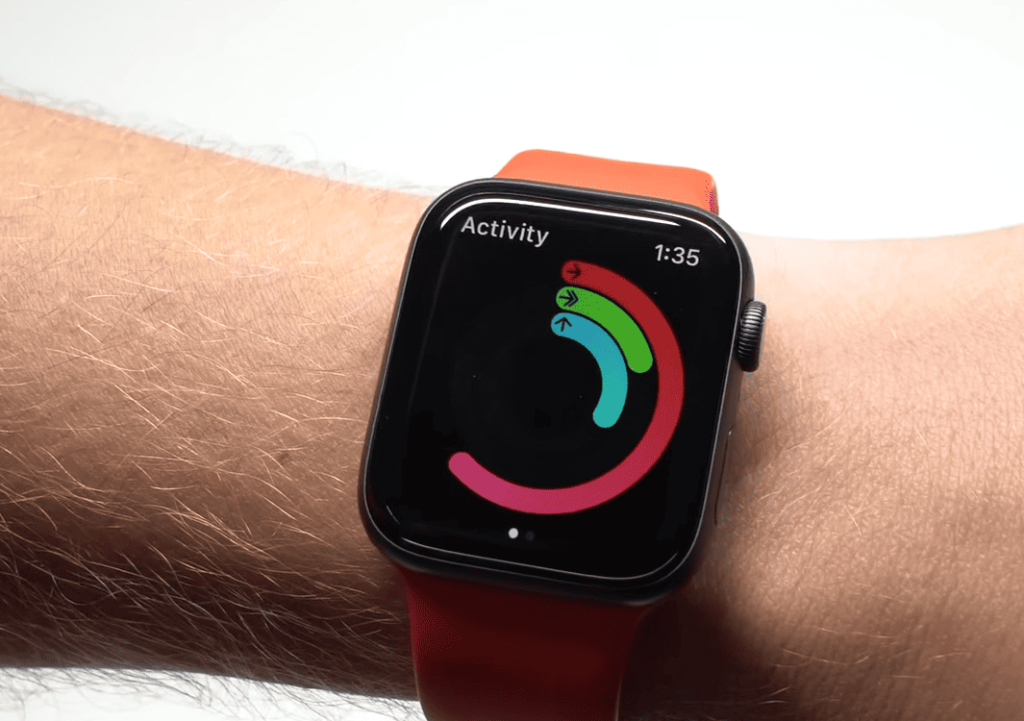
Simple factors like Airplane mode or temporary system glitches often cause these interruptions. Understanding the nature of the disruption helps you apply the right solution quickly.
Pinpoint Connection Versus Data Problems
Begin your diagnostic process by determining whether the challenge involves device communication or information transfer. Check if the problem affects all metrics or only specific categories like heart rate or step counts.
This distinction helps identify whether you’re dealing with broad connectivity issues or application-specific permission settings. Document exactly which data types aren’t transferring properly for future reference.
Verify that both electronics show consistent connectivity status indicators. Look for any error messages related to pairing or communication between them.
Examine Recent System Modifications
Review any changes made to either component in your tracking system. Recent software updates, new application installations, or privacy setting adjustments can disrupt smooth data flow.
Note whether the problem appeared suddenly or developed gradually over time. Sudden onset often indicates a settings change or software glitch, while gradual worsening suggests deeper configuration issues.
If you’ve recently unpaired and re-paired your wearable, this process can reset permissions. You may need to reconfigure health data access for your tracking applications.
Common Causes and Device Settings
The foundation of reliable data transfer between your devices lies in basic connectivity configurations. When information stops flowing properly, the solution often involves checking simple wireless settings. These fundamental checks resolve most communication problems quickly.
Start by examining the core connection methods that keep your electronics talking to each other. Proper configuration ensures seamless information exchange without complex troubleshooting.
Ensure Bluetooth and Wi-Fi Are Enabled
Your wearable primarily communicates through Bluetooth technology. When Bluetooth becomes unavailable, Wi-Fi serves as a backup connection method. Both protocols must be active for consistent data flow.
Open the settings app on both your phone and wearable to verify these wireless options. If they appear enabled but problems persist, toggle them off for ten seconds then reactivate. This refresh often resolves temporary glitches.
A faster alternative involves using Control Center’s Airplane Mode feature. Briefly enabling then disabling this option resets all wireless connections simultaneously.
Disable Airplane Mode and Low Power Mode
Power-saving features can intentionally limit background communication to conserve battery life. Low Power Mode restricts wireless activity, potentially interrupting data transfer between devices.
Check both electronics for accidentally enabled Airplane Mode, which completely disables wireless capabilities. Also verify that Low Power Mode remains inactive in your battery settings.
These basic settings checks should become your first troubleshooting step. They address the most common causes of communication breakdowns efficiently.
Step‑by‑Step Guide to Resolve Sync Issues
Simple technical resets frequently solve complex-seeming data flow problems. When information stops moving between your devices, follow this logical progression from basic to advanced solutions.

Start with the easiest fixes first. This approach saves time and often resolves the issue without complicated procedures.
Restart Devices and Update Software
Begin by restarting both your iPhone and Apple Watch. Temporary system glitches are surprisingly common. A fresh start often clears these minor errors.
For your iPhone: Press and quickly release the Volume Up button. Then press and release the Volume Down button. Finally, press and hold the side button until the Apple logo appears.
For your wearable: Simultaneously press and hold both the Digital Crown and the side button. Release them when you see the Apple logo on the screen.
After both devices restart, check if data transfer has improved. If problems continue, verify your software versions.
Open Settings on each device. Navigate to General > Software Update. Install any available updates. Current software ensures compatibility between your electronics.
Reset Sync Data and Unpair/Re-pair Your Apple Watch
When restarting doesn’t work, try resetting the synchronization data. This clears the communication cache without affecting your information.
Open the Watch application on your iPhone. Go to General > Reset > Reset Sync Data. Wait briefly while the system re-establishes the connection.
For persistent issues, unpairing and re-pairing creates a fresh connection. This process automatically backs up your data first.
In the Watch app, tap My Watch > All Watches. Select the information icon next to your device. Choose Unpair Apple Watch and confirm your decision.
Keep both devices close together during re-pairing. Follow the on-screen instructions to reconnect them. Your activity history and settings will restore from the backup.
Managing Apple Health Permissions and App Integrations
Many synchronization challenges originate from how applications interact with the primary health data repository. The Health platform serves as the central hub for collecting metrics from your wearable technology.
Proper configuration ensures seamless information exchange between your devices. Most integration problems stem from permission settings that need adjustment.
Verify Permissions in Apple Health
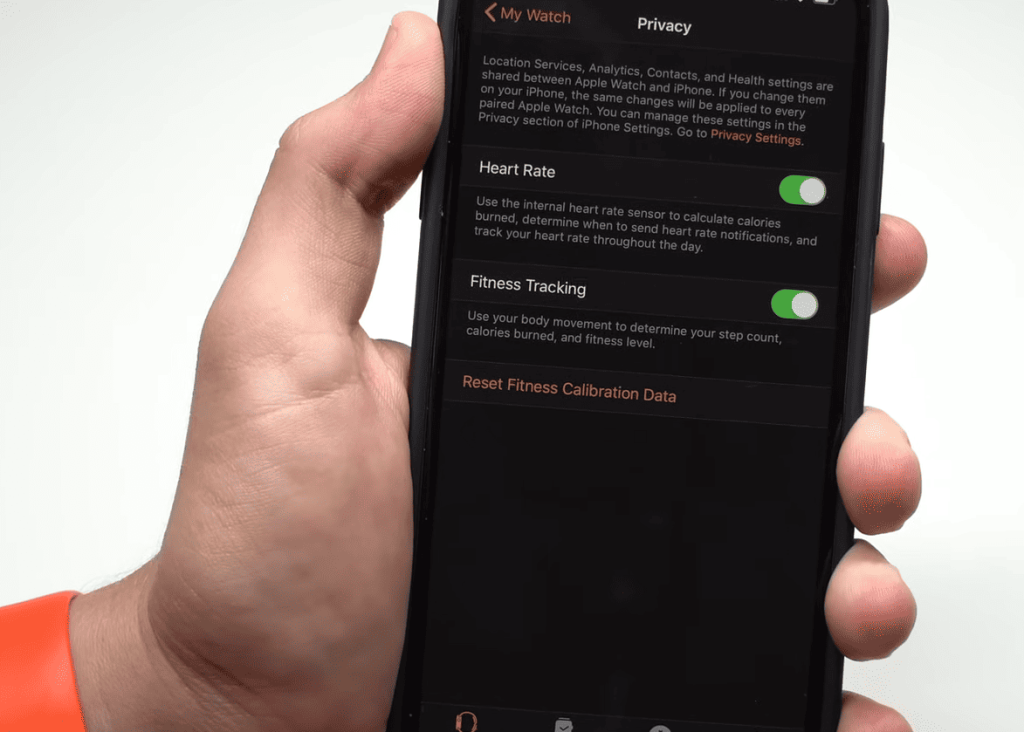
Begin by checking access rights in the Health application on your mobile device. Navigate to the Sharing section at the bottom of the screen.
Select the Apps category and locate your activity tracking software in the list. Ensure all relevant data categories show enabled status.
If any permissions appear disabled, use the “Turn On All” option. This grants complete access to metrics like step counts and workout details.
Reconnect Your App with Apple Health Settings
When your tracking software indicates connection but Health doesn’t list it, re-establish the link. This process clears any broken integration pathways.
Disconnect the integration from within your activity tracking software’s settings menu. Then reconnect and grant all requested permissions during setup.
Remember to allow access to all data types for comprehensive metric sharing. This ensures your exercise information flows correctly between systems.
| Permission Scenario | Symptoms | Recommended Action | Expected Outcome |
|---|---|---|---|
| Partial Access Granted | Some data syncs, other metrics missing | Enable all categories in Health settings | Complete data transfer |
| Broken Connection | App shows connected, Health doesn’t list it | Disconnect and reconnect integration | Restored data flow |
| Mismatched Data | Step counts or workouts don’t match | Check specific date data in Health browse section | Identify source discrepancies |
| iOS Version Issue | Persistent connection failures | Verify iOS 16 or later compatibility | Proper platform support |
Optimizing Activity Sharing and Data Tracking
Sharing your progress with friends can be incredibly motivating, but sometimes the connection needs a little boost. When activity data doesn’t transfer properly between devices, specific troubleshooting steps can restore functionality. These methods ensure your workout information flows smoothly to your sharing network.

Force Restart Devices and Refresh Connections
Begin by setting up activity sharing through your mobile device’s tracking software. Navigate to the sharing section at the bottom of the screen. Tap the account icon in the top-right corner to invite friends.
If sharing isn’t working properly, perform a force restart on both electronics. For your mobile device: press and release volume buttons, then hold the side button until the logo appears. For your wearable: hold both the crown and side button simultaneously.
Some data transfers only complete during charging sessions. Place your wearable on its charger and wait several minutes. This allows larger information exchanges like music playlists to sync properly.
Signing out and back into your cloud account can refresh server connections. Open settings, tap your name, and select sign out. Then sign back in using your credentials to restore proper data flow.
| Troubleshooting Scenario | Recommended Action | Expected Result |
|---|---|---|
| Activity sharing not updating | Force restart both devices | Refreshed connection and data flow |
| Friend invitations not sending | Verify mutual device compatibility | Successful sharing setup |
| Media not transferring | Place wearable on charger | Complete data synchronization |
| Persistent account issues | Sign out and back into cloud services | Restored server connectivity |
Conclusion
You’ve now explored a complete roadmap for restoring communication between your devices. By following the logical steps from basic checks to advanced resets, you can tackle most data transfer challenges effectively.
Remember, starting simple is key. Verify your wireless settings and permissions first. Keeping your software updated on both your iPhone and Apple Watch prevents many issues before they start.
If a specific app continues to have problems, a fresh install often clears stubborn glitches. For persistent issues, don’t hesitate to seek support or visit an Apple Store.
With patience, you can achieve seamless tracking of your steps, workouts, and overall activity. Your dedication deserves accurate data.